
Family & sharing
Members, groups, invitations and sharing.
Members and groups
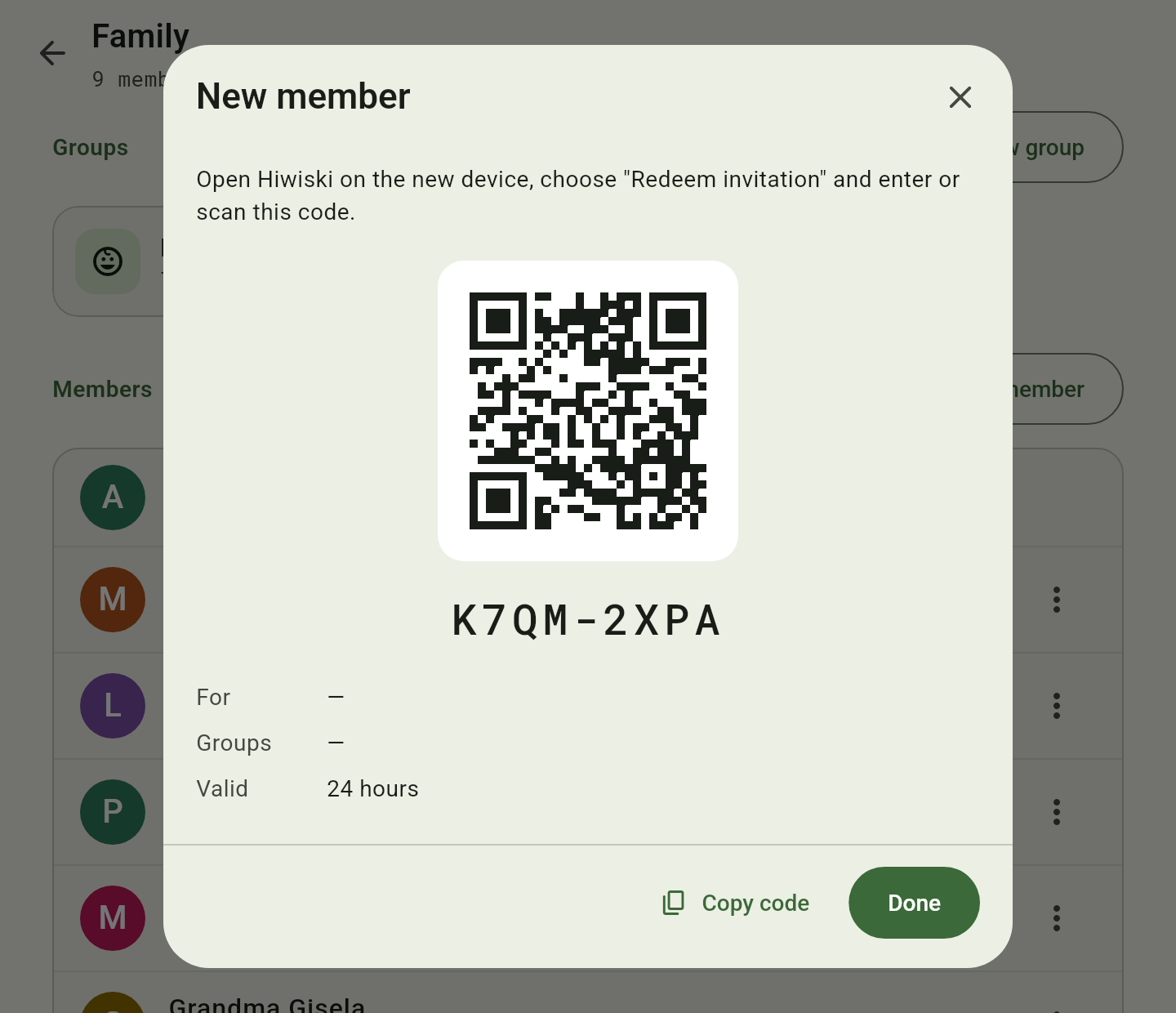
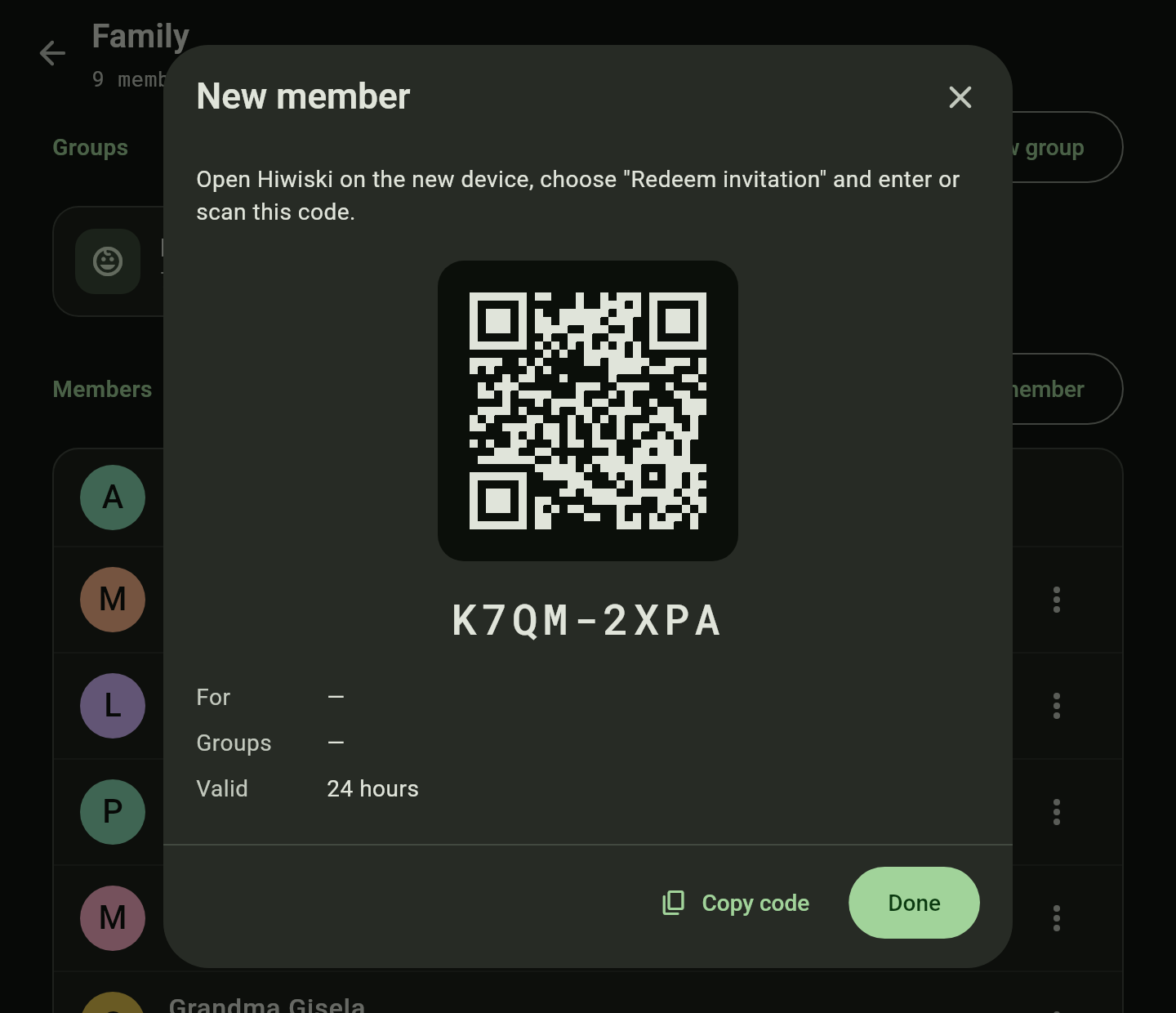
Members and freely named groups such as “Parents” or “Children”. New members join by invitation — as a code or a QR code.
Sharing
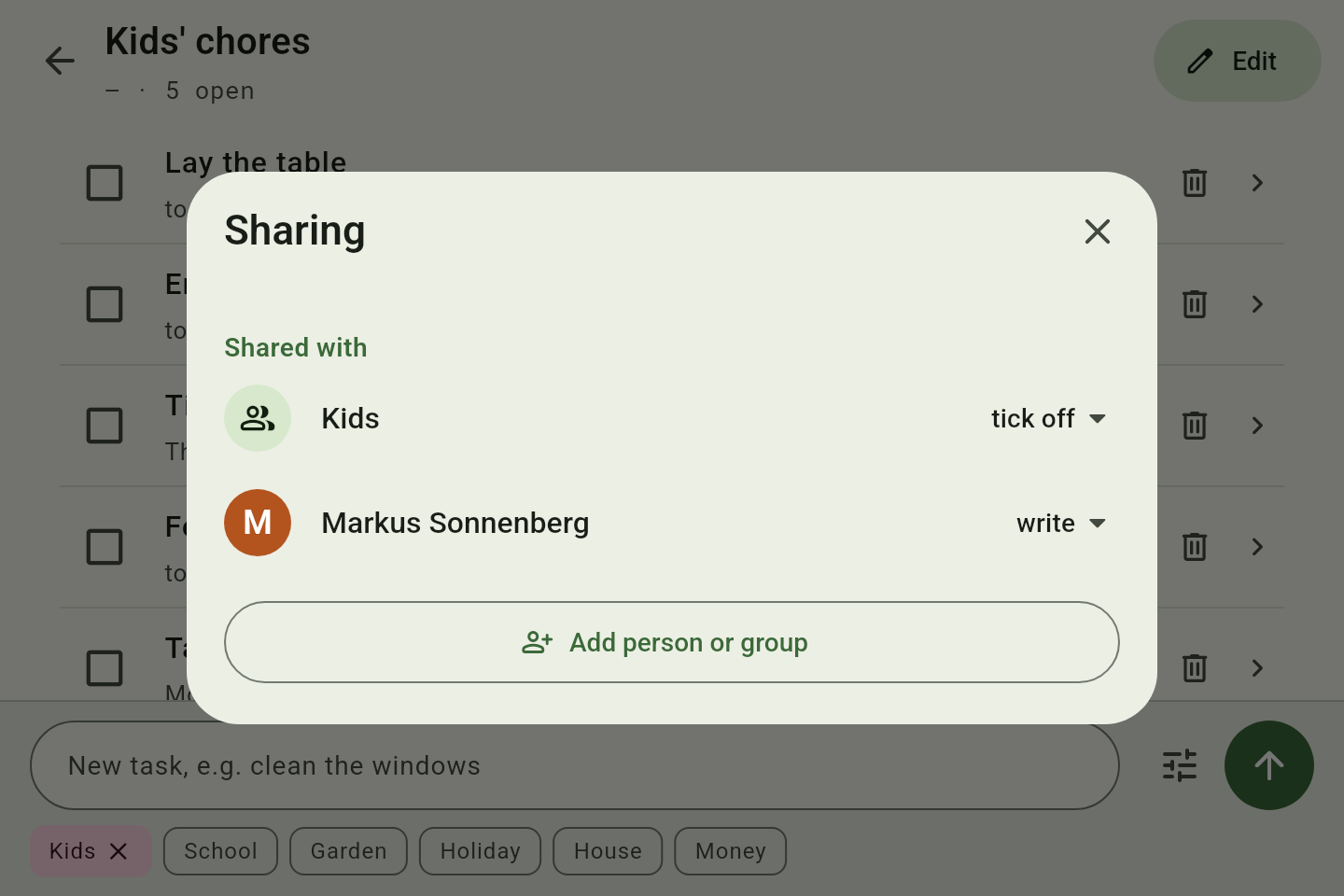
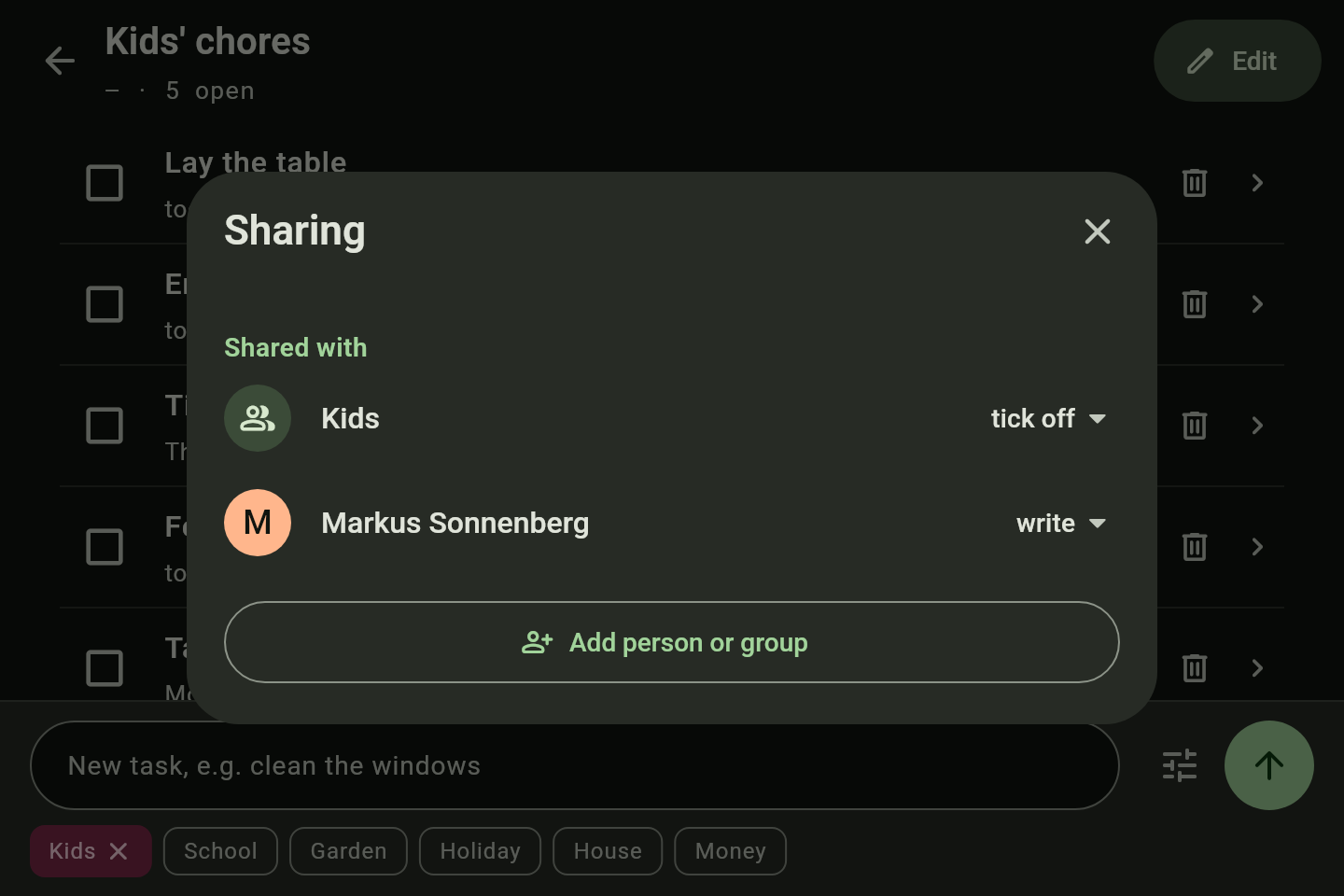
For every list, calendar and page: read, tick off or write — for single people or groups. Tasks and events inherit the sharing of their list or calendar, and whoever is assigned sees the task automatically.
No roles
All members have the same features. The administrator manages the server; in the app they see only what is theirs or shared with them.
Grandma and others
An account with a few shared calendars and pages — or, without an account, an ICS address for her own calendar.
How to
Invite the family
You need: a server and the administrator’s account.
- Open Account → Family and tap New member.
- Enter a name if you like, choose groups and how long the invitation is valid, then Create invitation.
- Show the QR code or pass on the code.
- The person invited taps Redeem invitation in the app, scans the code and chooses a name and a password.
Who sees what: sharing with groups and levels
- Create groups under Account → Family, for example “Parents” and “Children”.
- Open a list, a calendar or a page and tap Sharing in its info bar.
- Add people or groups and pick the level: read, tick off or write.
- What is inside a list or a calendar follows by itself.
An account for a child
- Invite the child as described above.
- Share with them what they should see — the chores with tick off, say, and the family calendar with read.
- Everything else stays invisible to the child until you share it.
Good to know
- Whoever has access to the server itself (Docker, the database) can technically see everything — as with any self-hosted service.
- Without a server there is no sharing: the device is a family of one.