
Boards & the wall tablet
A start board for every member and a dashboard for a wall tablet.
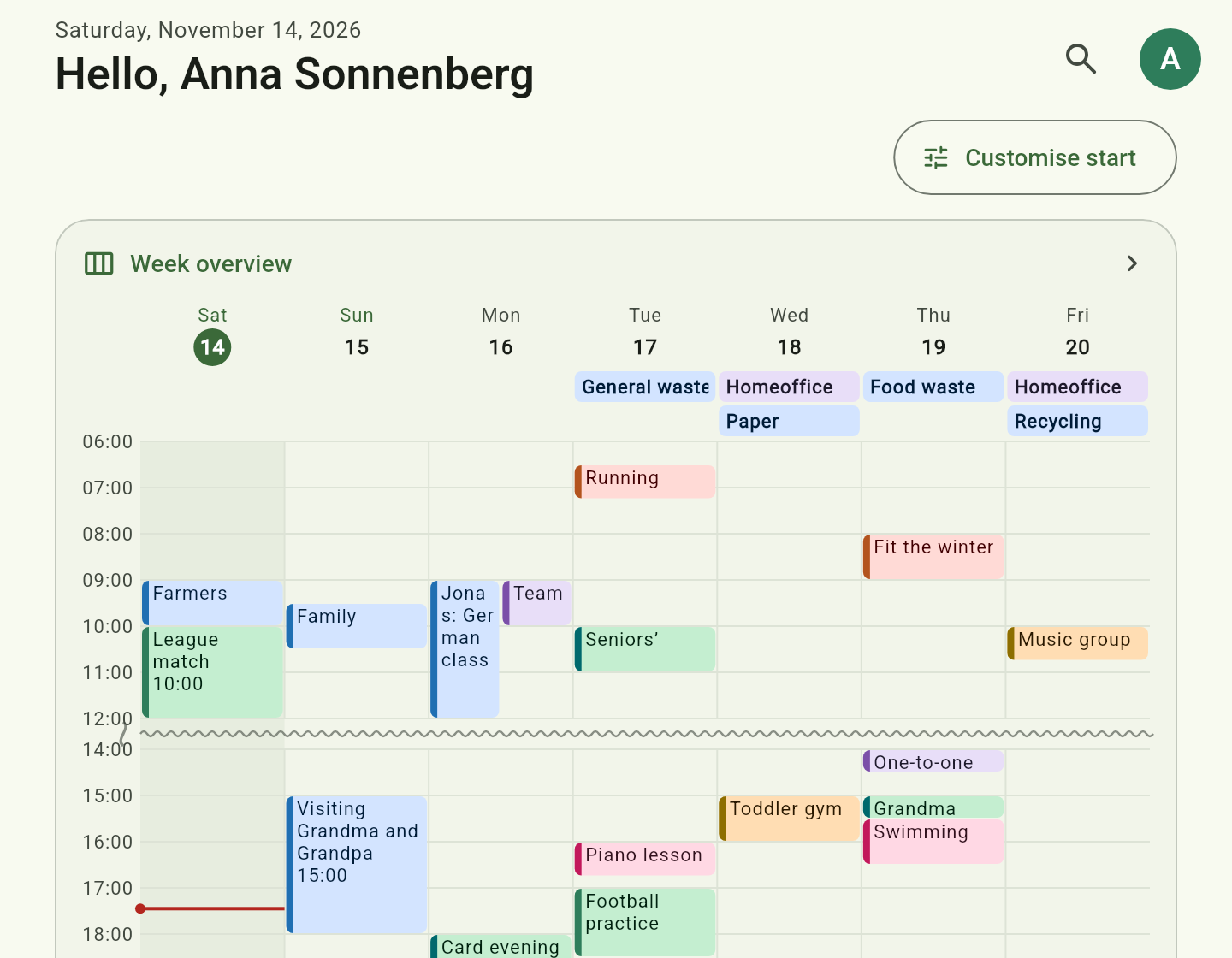
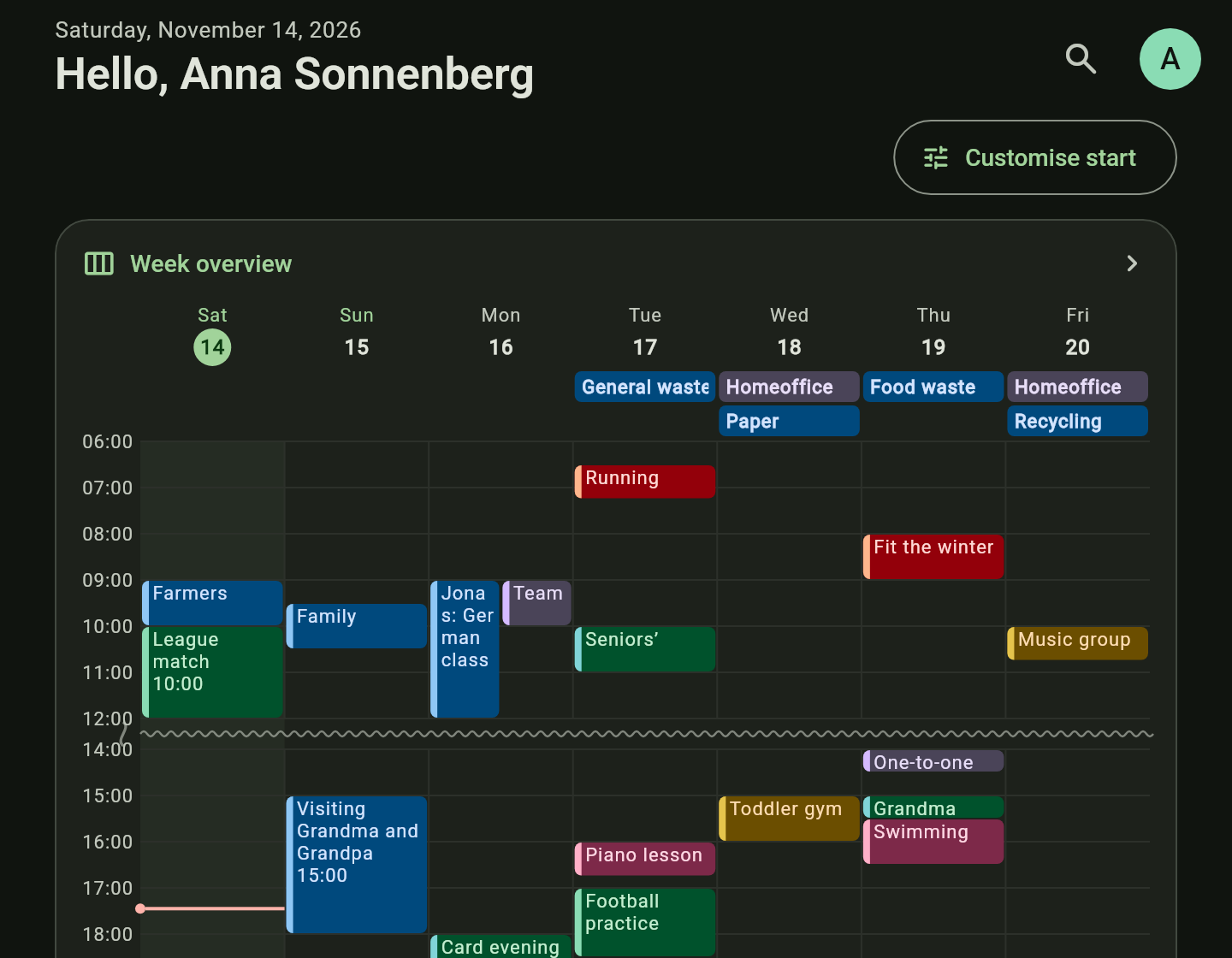
The start board
Tiles for calendar, week, lists and boards. Every member arranges their own. A single list can be ticked off right on its tile.
The wall tablet
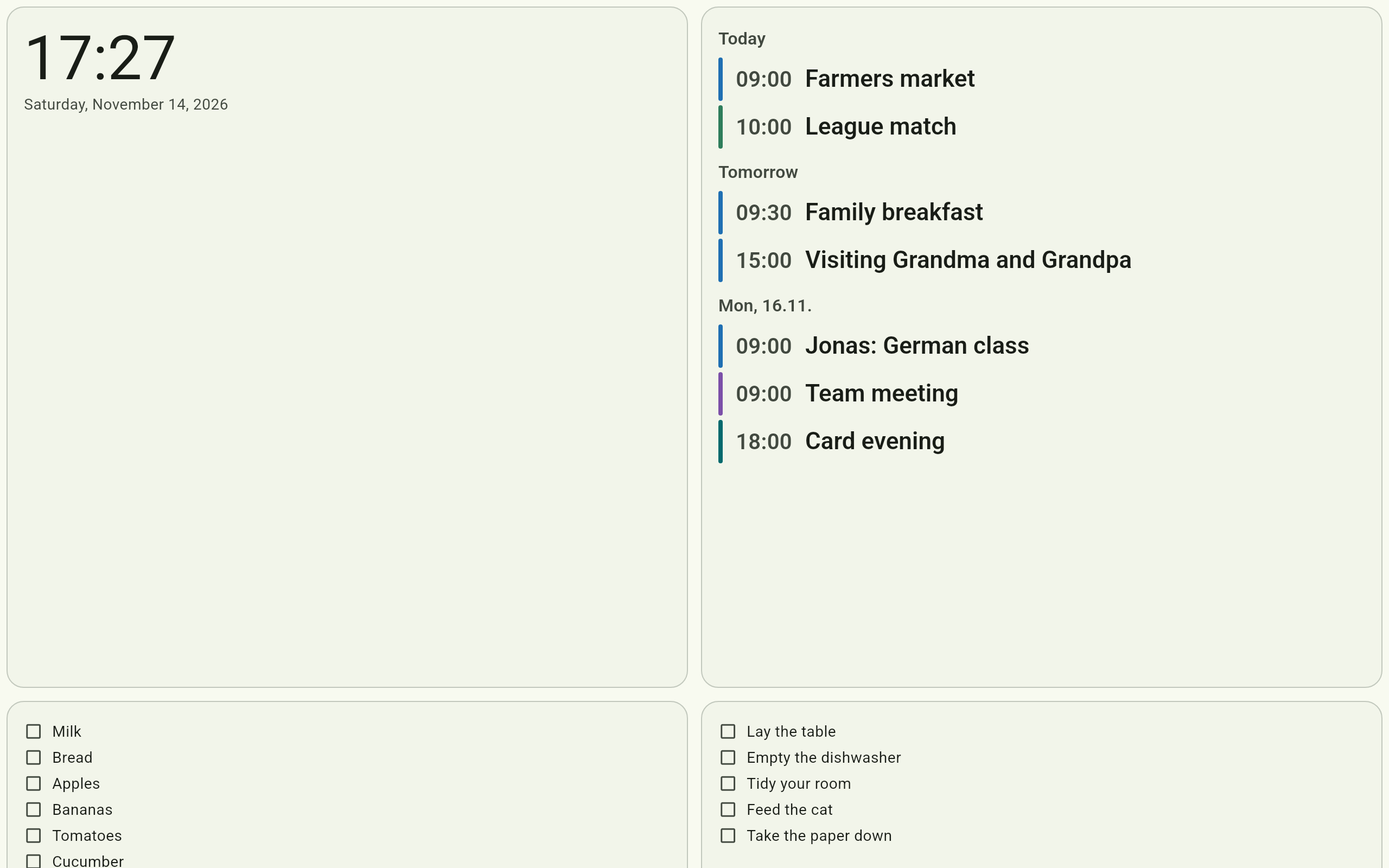
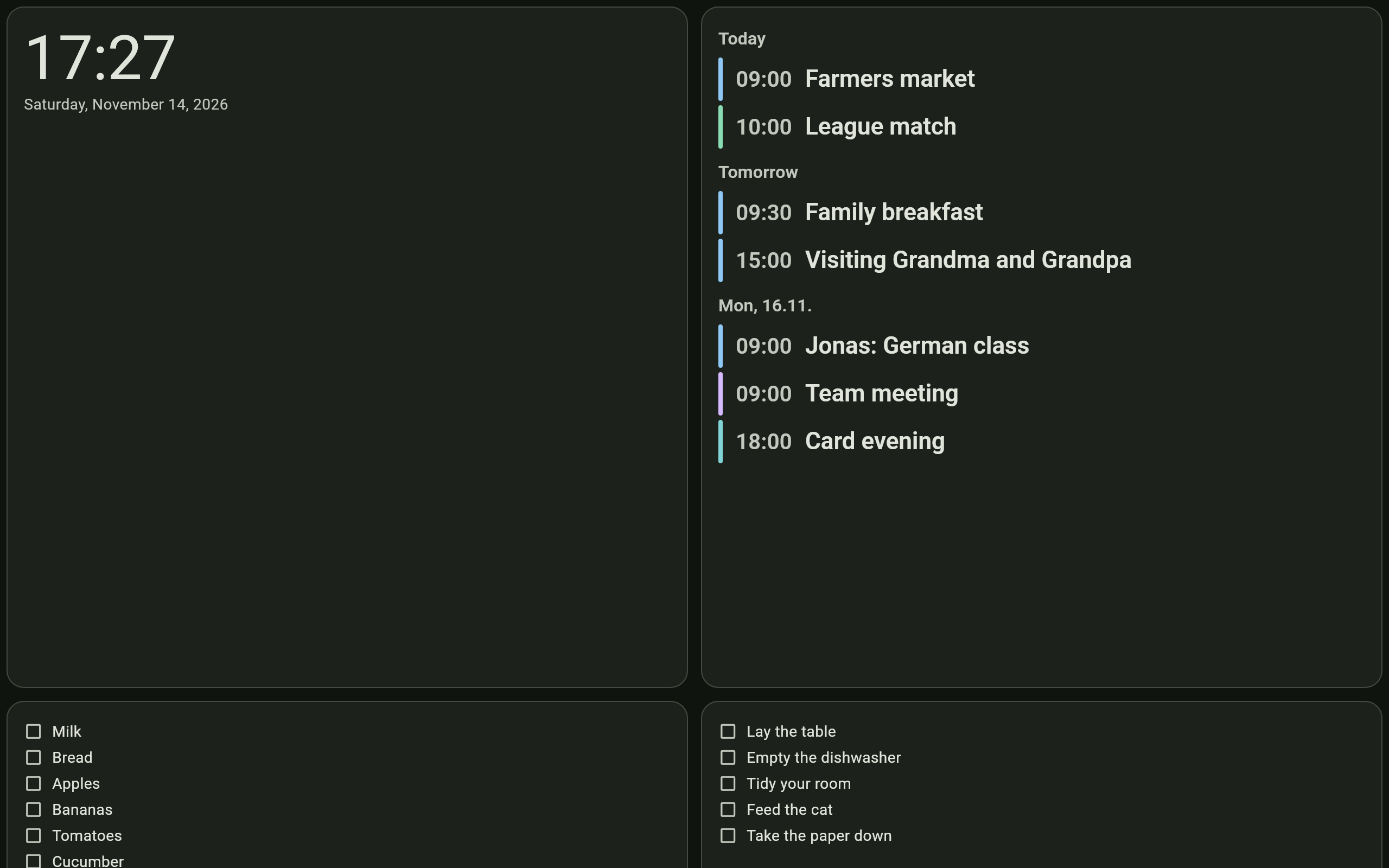
One dashboard per member, in the browser under an address of its own: no sign-in, no app, with high contrast and large type. The screen stays on, and the board updates itself.
The tiles
Clock, calendar, week, task lists, shopping list, Kanban board, recipe of the day, wiki page and note.
How to
Arrange your start board
- On the start board tap Customise start.
- Add tiles with + Calendar or + Tasks.
- Tap a tile to set it up: which calendars, which lists, how wide.
- Done. Only your own start board changes.
Set up a wall tablet
You need: a server.
- Create a member of its own for the tablet, for example “Hallway”, and share with it the lists and calendars it should show.
- Sign in as that member and open Account → Dashboard. Set the number of columns and arrange the tiles.
- The dashboard’s address is at the top. Open it in the tablet’s browser, for example through Show as QR.
- Put the browser in full screen. The board keeps the screen awake.
If the tablet is lost or the address has been passed on: Regenerate makes the old address invalid at once.
Good to know
- Whoever knows the address sees the board. It does not expire and can be regenerated at any time.
- If the server cannot be reached, the tablet keeps the last state with “last updated 14:32”.
- Without a server there is no wall tablet.